

Outlook add-in
Installing BriefCatch in Microsoft Outlook, what it needs from your account, and where the setup page sends you when something is not working.
The BriefCatch add-in for Outlook brings the same suggestions and citation checking you get in Word to email, so you can catch a clumsy sentence or a wrong citation before you send it rather than after.
Outlook add-in access is Pro and Enterprise, not Individual. See Plans and licenses.
Before you start
Outlook add-ins install into an Exchange mailbox. If Outlook is signed into Gmail or another non-Microsoft account, the install fails with an “Exchange error” that no setting on your side can fix — you need a Microsoft 365 work account.
Installing it
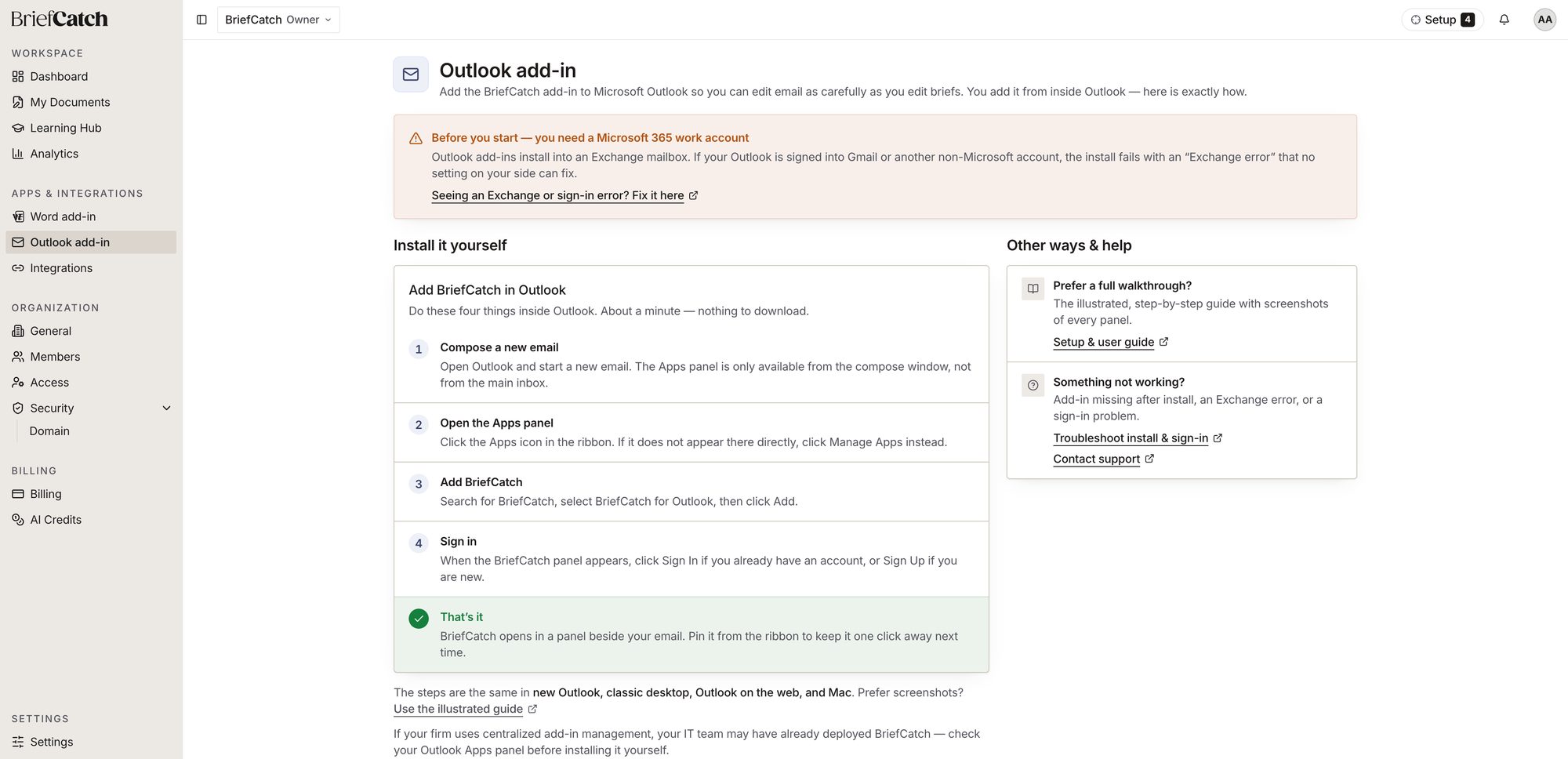
Compose a new email
Open Outlook and start a new email. The Apps panel is only available from the compose window, not from the main inbox.
Open the Apps panel
Click the Apps icon in the ribbon. If it does not appear there directly, click Manage Apps instead.
Add BriefCatch
Search for BriefCatch, select BriefCatch for Outlook, then click Add.
Sign in
When the BriefCatch panel appears, sign in with the account you already use, or sign up if you are new.
The steps are the same in new Outlook, classic desktop, Outlook on the web, and Mac. If your firm uses centralized add-in management, IT may have already deployed BriefCatch — check the Apps panel before installing it yourself.
What it can and cannot do
Outlook is one of the Office hosts BriefCatch adapts to rather than treats identically to the desktop Word add-in: real-time updates and inline suggestions are unavailable there by design, so use Refresh to pull the latest analysis instead. See Troubleshooting.
Related
- Word add-in — the same engine in Microsoft Word
- Get started — the rest of setup
- Plans and licenses — which tiers include the Outlook add-in
- Troubleshooting — sign-in and refresh problems