

Integrations
Connect Google Drive or OneDrive, what BriefCatch can see once you do, and how organization policy limits it.
Connecting a drive lets you review a document without downloading it first, and lets BriefCatch put a finished copy back where the rest of your work lives.
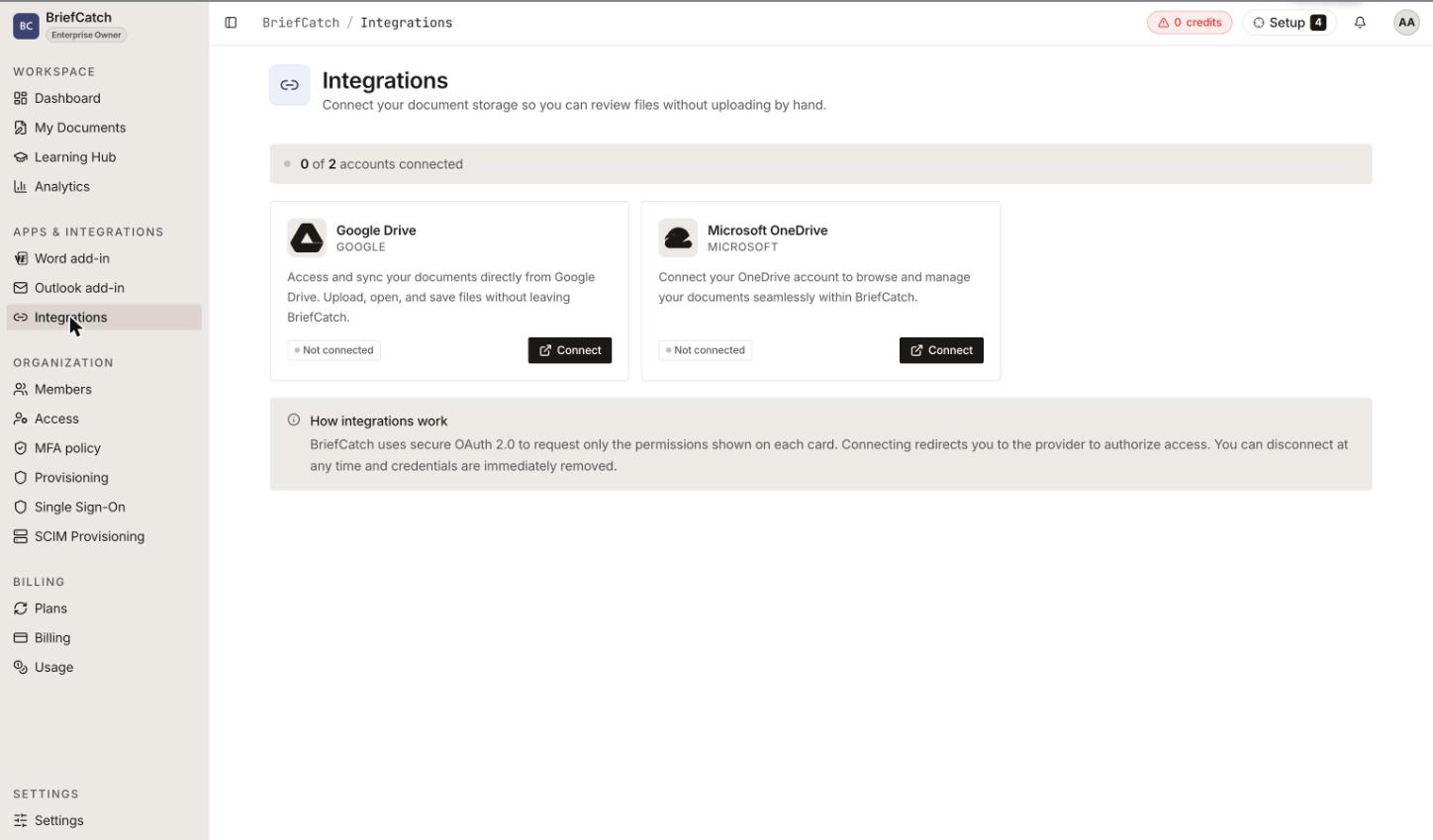
What you can connect
Google Drive
Personal Drive and, where your organization allows it, shared drives.
Microsoft OneDrive
OneDrive for Office 365, including shared folders.
Each card shows its state — Not connected, Connecting…, Connected, or Failed — and, before you connect, exactly what access it will ask for: view file metadata, read and write files, and access shared drives or folders.
Some providers are marked Enterprise and show Upgrade required to connect. Those are gated by plan, not by a setting you can flip.
Connecting
Selecting Connect hands you to the provider’s own consent screen. You sign in there, approve the access, and come back. BriefCatch never sees your Google or Microsoft password.
Once connected, the drive appears as a source in My Documents, and as a destination when you choose where an uploaded document should be saved.
Disconnecting
Disconnect revokes BriefCatch’s access to that drive. Documents already stored in BriefCatch stay; documents that live only in the drive become unreachable from BriefCatch until you reconnect. Any file picker you had open for that provider is abandoned.
Disconnecting does not delete anything from the drive itself.
Personal versus organization
Two different things get called an integration:
- A personal connection is yours. It appears only for you, and it is what the Integrations page connects.
- An organization connection is set up by an admin and applies to the whole organization. The shared drive members can browse from My Documents comes from here.
An admin can turn Allow personal drives off. When it is off, the Connect buttons are unavailable to members, and the organization’s shared drive is the only cloud source. See Settings.
When connecting will not work
- “Your trial has expired — upgrade to connect an integration” — drive access is a licensed capability, and the trial has ended.
- “Upgrade required to connect” — the provider is on a higher tier than your plan.
- “New connections temporarily unavailable” — the provider connection is disabled platform-wide for the moment. Existing connections keep working.
- “Failed to connect” — the consent flow did not complete. Retry; if it persists, check whether your organization’s identity provider blocks third-party app consent.
What BriefCatch does with drive access
It lists the files you point it at, reads the ones you choose to review, and writes back only where you tell it to. It does not scan or index your drive in the background, and the access is scoped to the drive you connected, not to every Google or Microsoft service on the account.
Next: My Documents.