

My Documents
The document library — uploading, connecting a drive, finding a brief, and what the status and expiry labels mean.
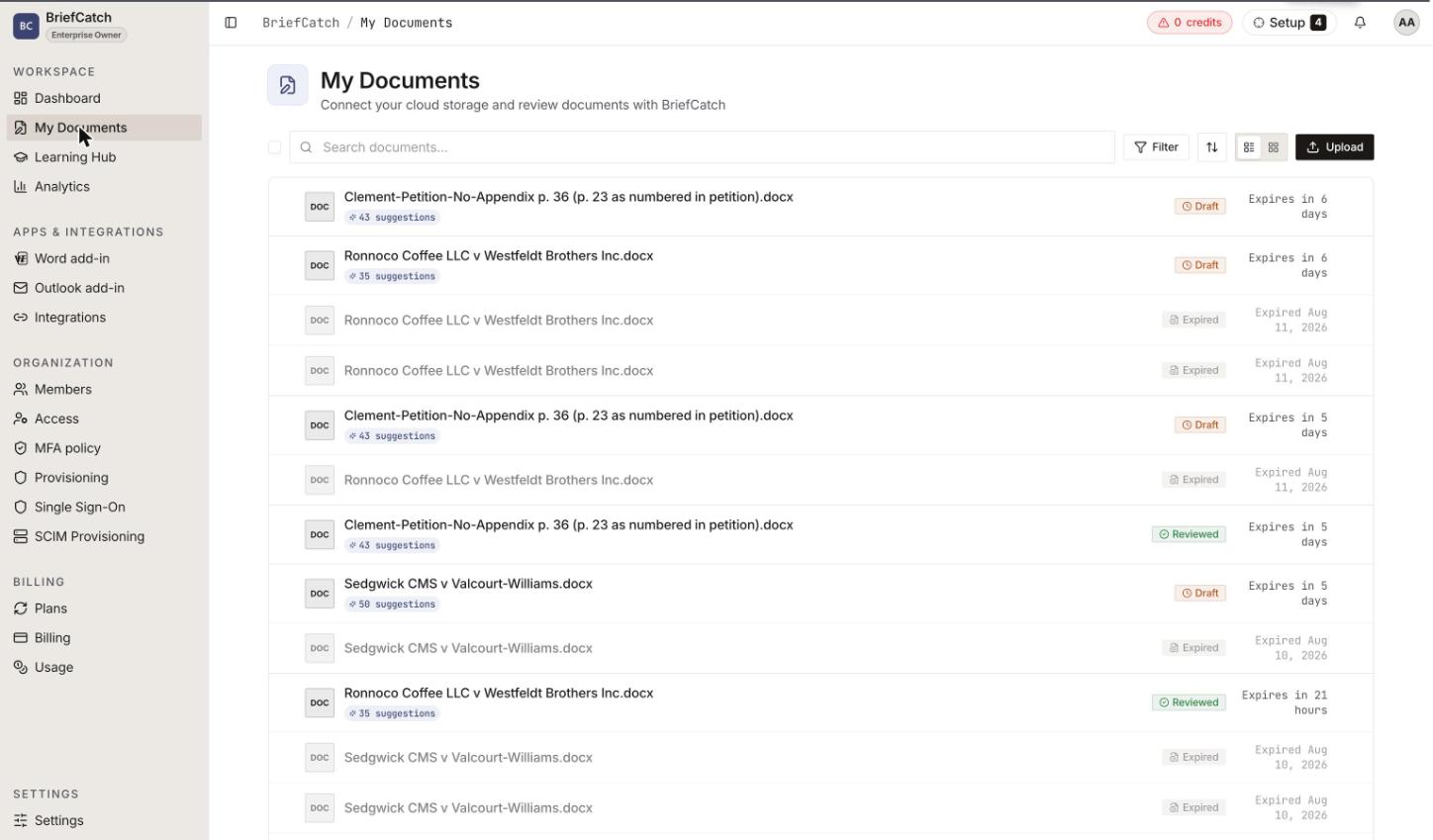
My Documents is the home of everything you have put through BriefCatch. It is both the place you start a review and the place you come back to for one you already ran.
Getting a document in
There are two routes, and they behave differently afterwards.
Upload document
Send a file straight from your machine. BriefCatch validates it, shows progress, and asks what should happen to the file after analysis.
Add from a connected drive
Pick a file that already lives in Google Drive or OneDrive. If no drive is connected yet, the library offers Connect a drive first.
The web upload accepts .doc, .docx, and .pdf.
What happens to the file after analysis
Upload asks you to choose, because the answer has real consequences:
- Keep a private copy for a while — BriefCatch stores the file so you can reopen the results without re-uploading. You pick an Auto-delete after window. Longer windows are a paid-plan capability; if the option is greyed out, your plan does not include it.
- Save to my Google Drive / OneDrive — a permanent copy in your own drive, managed by you.
- Save to the organization drive — a permanent copy in your organization’s drive, in a folder you choose.
Choosing a destination opens a folder browser scoped to what you can reach: Personal, Organization, My Drive, or a Shared Drive. You have to open a folder to select it — a file cannot be a destination.
Finding things
The toolbar carries search, filters, sort, and a List view / Grid view switch.
| Control | What it filters on |
|---|---|
| Search | File name |
| Scope | Personal or Organization |
| Provider | Which drive the file came from |
| File type | Docs versus other files |
| Status | Draft, Reviewed, Expired |
| Date, Name, Size | Sort order |
Active filters appear as removable chips, with Clear all to reset. Shared documents is a separate view for files other people in your organization shared with you.
If a connected drive has new files that the library has not picked up, Sync drive documents refreshes it.
Reading a row
Each document shows:
- Status — Draft (uploaded, not reviewed), Reviewed (analysis finished), or Expired (the stored copy is gone).
- Suggestion count — how many findings the review produced.
- Expiry — “Expires in N days” for a stored copy, counting down to the auto-delete window you chose at upload.
Selecting rows reveals bulk actions. Details opens a side panel with the document’s history, including previous review runs and, where available, author history.
Expiry, and what survives it
When a stored document expires, the file is deleted; the row and its review metadata can remain visible. That is why an expired document cannot be opened — there is nothing left to open. Re-upload the source file to review it again.
This is a deletion, not an archive. If the only copy was the one BriefCatch was holding, it is gone. Choose a drive destination at upload for anything you need to keep.
When the library will not let you in
- “You cannot review documents with your current plan” — the account’s license does not include document review. See Plans and licenses.
- “Your trial has expired — upgrade to upload documents” — the trial ended. Existing documents stay readable and exportable; uploading and analyzing stop until the license is active again.
- “This document is still being processed” — analysis has not finished. Wait rather than re-uploading; a duplicate upload starts a second run.
Next: Review a document.